In rare occasions when you are using two-step verification for your Yahoo account email, you may have to follow the steps below to create an “app password” to sync your Yahoo Calendar with your Skylight Calendar.
- Sign into your Yahoo Mail account
- Click on your username in the upper-right corner, and select Account Info
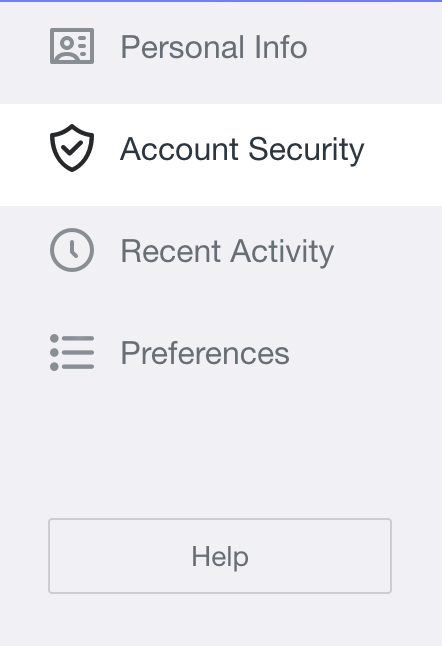
- Visit the section labeled Account Security in the left sidebar
- Select Generate app password at the bottom of the page:
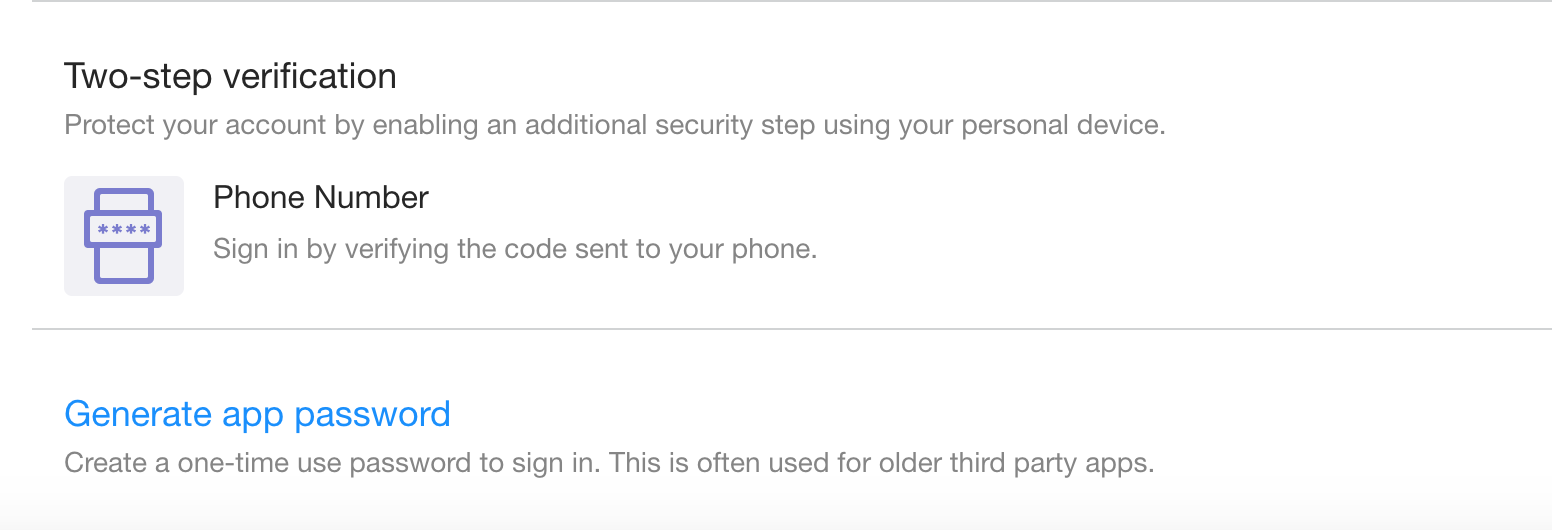
- Here, you will be able to generate an app password
Note: You will need to select "Other App" in the drop down to proceed: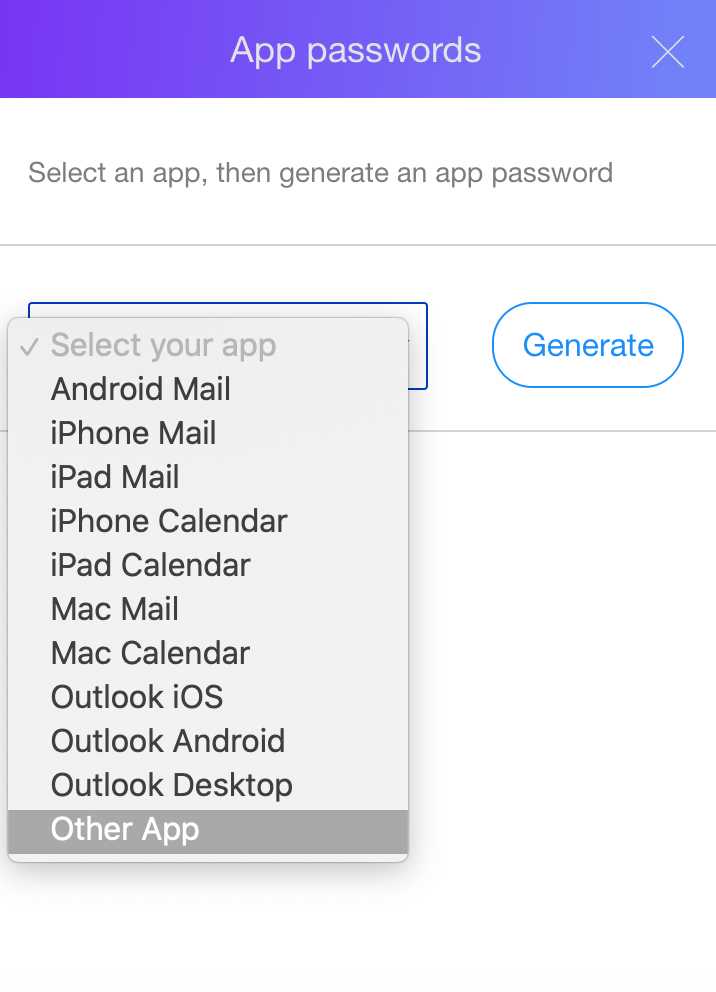
- Enter this newly created app password when prompted in the Skylight application during the syncing process.
- Click on the green “SIGN IN” button at the bottom
- Continue through the steps to sync your Yahoo account with Skylight Calendar